In the app, open the permission control beneath the composer and choose Full access if your client and policy offer it. In the CLI, codex --dangerously-bypass-approvals-and-sandbox starts Codex without its local sandbox or approval prompts. That broader access can reach beyond the project and cause unintended changes, so use bounded workspace access for everyday work. See OpenAI's app guidance and documented sandbox combinations.
Full access in the app and CLI
In the app, use the permission control beneath the composer. Labels and options vary across clients and managed environments. The Windows documentation describes Ask for approval as the choice that applies sandbox protections; organization requirements can make Full Access unavailable or reject it. See native sandbox guidance and managed-policy verification.
The documented CLI flag is:
codex --dangerously-bypass-approvals-and-sandbox
Its alias is --yolo. This flag disables the local sandbox and approval prompts; the CLI reference limits its use to externally hardened environments. It does not override organization requirements. If a task needs one additional writable directory, check a narrower grant such as --add-dir before removing the boundary. See CLI flags and security guidance.
Do not substitute --full-auto from an older tutorial. OpenAI's own cookbook marks that flag as deprecated; it is not the full-access command above. See the official update note.
Separate access from approval
The sandbox or permission profile sets the technical boundary for local files and commands. The approval policy controls when a request needs review, while the reviewer setting determines whether eligible requests go to you or automatic review. Asking for approval does not make a writable workspace read-only; removing prompts does not automatically expand it. See approval controls.
| Choice | Question to answer | Common mistake |
|---|---|---|
| Folder and reads | Which files does this task need, and are any sensitive? | Assuming the read boundary equals the write boundary |
| Edits and commands | Does the result require changes, or only analysis? | Assuming every path inside the workspace is writable |
| Command networking | Is online access necessary, and to which service? | Treating command networking, search, apps, MCP and browsers as one switch |
| Approval and reviewer | Which requests need review, and who reviews them? | Treating never as permission to do everything |
The built-in :workspace profile permits writes in active workspace roots and system temporary directories while keeping paths such as .git, .agents, .codex and .aws protected. Read access depends on the effective profile or sandbox rules; a project write boundary does not prove every other file is unreadable. See profile inheritance and protected paths.
Command network restrictions do not cover every online capability. Hosted search, apps, MCP, browser and computer-use tools have separate controls. Domain rules for command traffic also need the relevant network proxy to be active. See traffic outside the command proxy and network permissions.
A decision diagram for the task you actually have
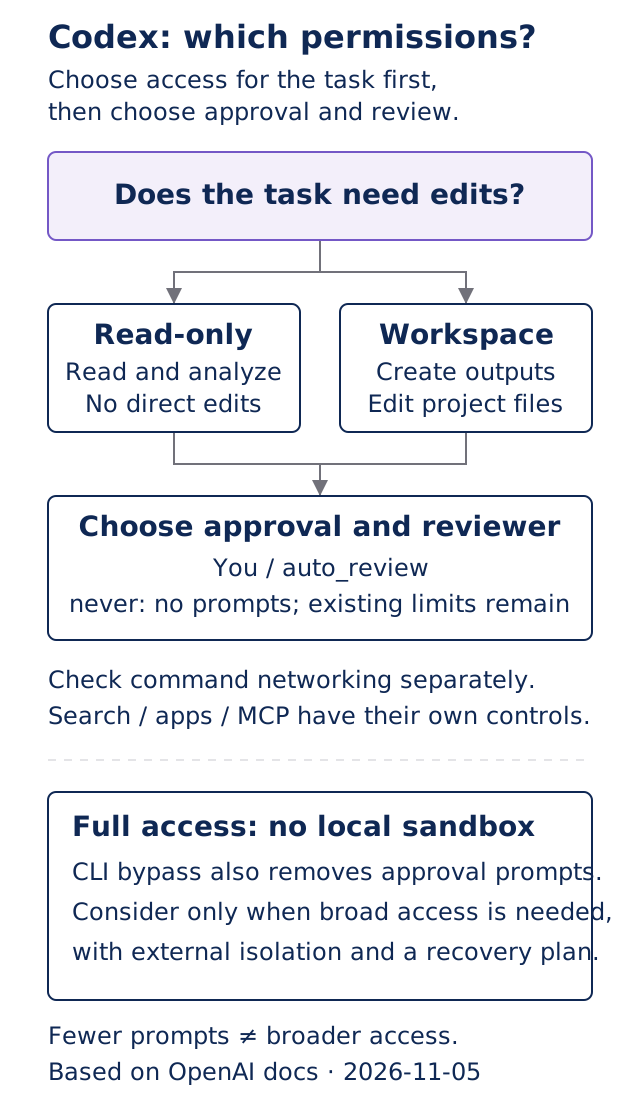
Original Gwarket diagram based on OpenAI documentation, November 5, 2026. Fewer prompts and broader access are separate decisions; networking still needs its own check.
Our first judgment: if interruptions are the problem, change the review workflow before widening access. The same workspace boundary can send eligible requests to a person or automatic review. With never, actions outside the active boundary may fail instead of prompting. That is a workflow choice, not a broader grant. This recommendation applies the documented reviewer model.
Our second judgment: size permissions around the result you need. A meeting-note summary usually needs a material copy and an output folder. If the task suddenly asks for your entire home directory or a company cloud account, identify how that extra access contributes to the deliverable. This applies the least-privilege profile approach to routine work; a copy or a written request is not a technical permission lock.
Current commands: /permissions and /presets
Alongside the menu, the official CLI documentation supports selecting a profile, approval policy and reviewer inline:
/permissions :workspace --approval-policy=on-request --reviewer=user
Where the configuration permits it, this selects workspace access and sends approval requests to you. This syntax uses permission profiles: check client support and the organization's allowed profiles first. The reviewer can also be auto_review, subject to policy. See the official /permissions syntax.
/presets reuses prompts and settings; it does not bypass a restriction. Open it and press n to save a prompt or slash command, or s to create a preset from the current model, permissions, terminal title or status line. Run a saved preset by number. Verify permissions before saving them so an unsuitable boundary is not reused. See the official /presets instructions.
Use permission profiles or older sandbox settings
Permission profiles are currently beta. Built-ins include :read-only, :workspace and :danger-full-access. The last removes local sandbox restrictions; its name alone does not describe every approval or connector behavior. Check the approval policy separately. See Permissions.
Profiles do not combine with sandbox_mode and sandbox_workspace_write. Normally, a loaded sandbox_mode or the --sandbox flag selects the older system. Managed allowed_permission_profiles is the exception and forces profiles; omitted profiles, including built-ins, can be denied. See migration guidance.
What are the effective default permissions?
Use /status to inspect the active CLI session and /debug-config when you need the configuration sources. In the app, check the selected workspace and permission control. Verify the setting actually in effect rather than assuming every client shares one default. See built-in commands.
Personal configuration normally lives in ~/.codex/config.toml. Trusted project configuration, selected config profiles and launch overrides can take precedence. Managed requirements constrain the choices; editing a personal default cannot remove them. A general config profile selected with --profile is also different from a permission profile. See configuration precedence.
How do I give Codex access to a folder?
- Open a small workspace containing public, synthetic or non-sensitive copies.
- Decide whether the task needs reads only or edits. For a supported profile-based CLI session, use the
/permissionsexample above and verify its effective result. - If the client still uses older sandbox settings, the documented flags can start bounded editing as follows. Do not layer them onto a profile setup:
codex --cd "./codex-practice" --sandbox workspace-write --ask-for-approval on-request -c approvals_reviewer=user
The folder must already exist. The reviewer override explicitly requests human review; on-request alone can inherit auto_review. This command does not force command networking off, so verify the effective network setting separately. See CLI flags, sandbox combinations and configuration precedence.
On Windows, distinguish native PowerShell from WSL2: they use different sandbox implementations and may have different home/config locations. Changing the other environment's file does not configure the running client. See Windows guidance.
Check the result before starting real work
Complete this checklist, then ask for a three-line summary of a non-sensitive copy in the same folder. Inspect the result against the source and review file changes. A successful edit verifies that action, not every folder, online service or tool permission.
Workspace for this task:
Reads only, or edits needed:
Effective permission profile or sandbox:
Is command networking enabled:
Are search / apps / MCP separately available:
Which requests need review, and by whom:
Any extra access: exact location and reason:
How to stop and recover if unclear:
Use an available read-only setting for observation. If it is unavailable, a written “do not edit” instruction is not a technical lock; check the policy or use a disposable copy. Pause when a request introduces an unrelated folder, an unexplained command or a transfer of real work material. Establish what will happen and why before granting access.
Frequently asked questions
Can Ask for approval still allow edits?
Yes. The effective sandbox or profile decides whether a location is writable. Approval policy and reviewer settings decide how eligible requests are reviewed. Check the active settings rather than a menu name alone. See approval review.
Is never the same as full access?
No. never disables approval prompts while Codex works within the existing boundary; blocked actions may fail. The full-access bypass flag removes the local sandbox as well. See runs without approval prompts.
Why is Full access missing or blocked?
Client support, the execution environment or managed requirements may explain it. Do not assume changing personal defaults bypasses a policy. Follow the permission-mode troubleshooting guide for that separate problem.
Next steps
- Find your way around the Codex workspace: locate conversations, file changes and command results.
- Complete a reviewable first Codex task: work from fictional material and check every result.
- Troubleshoot an unavailable permission mode: check client support, environment and managed rules.
Sources and verification date
Verified on November 5, 2026 against the official pages below. Permission profiles are marked beta. The sources confirm current command behavior but do not establish that each command first shipped in October.
- OpenAI: Agent approvals & security: sandbox, reviewer, networking and full access.
- OpenAI: Permissions: profiles, protected paths, networking and migration.
- OpenAI: Developer commands:
/permissions,/presets,/status,/debug-configand flags. - OpenAI: Windows App and Windows sandbox: native and WSL2 execution.
- OpenAI: Configuration precedence and enterprise security cookbook: defaults and managed constraints.
- OpenAI's cookbook update note:
--full-autodeprecation.