For your first CC Switch setup, change one tool and one provider. Verify where requests actually go, then test switching back. An “enabled” label alone does not confirm the model, account or billing destination.
This walkthrough uses one Codex CLI provider in Direct mode. If you are still choosing a tool, start with the CC Switch overview. Here, the goal is narrower: preserve a working baseline, configure one provider, verify it, and return to that baseline.
Prepare one provider configuration you are authorized to use
The official project is farion1231/cc-switch. Windows users can obtain an installer or portable package from its Releases page. Check the operating system and filename; a credit-selling site in a search advertisement is not the official tool.
This walkthrough uses Codex CLI as its context. Tools differ in authentication, configuration files and when changes take effect. Do not apply CLI instructions directly to the Codex desktop app.
For Windows/WSL setups, confirm which environment runs Codex and which configuration directory CC Switch manages. CC Switch does not detect WSL automatically. If you intentionally use a WSL configuration directory, align both tools with that location and restart as documented; do not assume a change to the Windows-side settings reached WSL. See configuration-directory settings.
| Prepare | What to check |
|---|---|
| A working baseline | Record the tool, provider and sign-in method. Run a small test to confirm that the starting configuration works. |
| New provider details | Obtain the Base URL, model ID and authentication method from that provider’s official documentation. |
| Test material | Use a short, non-sensitive sentence you wrote, without a real project or private files. |
| A recovery reference | Keep a configuration backup. Store credentials securely on your device, outside screenshots or public tutorials. |
“Research test” below is a custom label, not a provider or a working preset. You need access to an authorized service; installing CC Switch does not provide model credits.
Save a recovery point before switching
Open Settings → Data. Under Backup & Restore, use Backup Now and record its time. Use Export SQL Backup if you also need a separate backup file; keep it private because configuration exports can contain credentials. A CC Switch database backup is not proof that every client login or project file has been backed up. These preparation steps follow the official backup documentation.
Check the configuration before enabling it
- Open CC Switch and select the tool you actually use. Choose Codex for this example without changing other tools.
- The v4.0.25 README says first launch automatically imports existing Codex configuration as a provider named
default. Inspect that entry and confirm it matches the working baseline. If it is missing or wrong, stop before switching; do not assume the import succeeded or overwrite the original settings. - Add a provider using the appropriate preset or custom settings. You can name it “Research test.” Check every other field against the provider’s documentation. Do not use its homepage as an API endpoint or guess a request path.
- For a direct-compatible provider, save and reopen the entry, check the endpoint, model and authentication method, then use the switch/enable action on its card in Direct mode. Viewing a Direct/Routing/Aggregation tab alone does not activate that mode. If the provider needs routing, keep it outside this first direct-only exercise.
- Restart Codex CLI as described in the official instructions before testing. Restart requirements differ between tools.
You do not need to enable a proxy, failover or automatic model routing for this first test. Changing several features at once makes unexpected results harder to trace.
Keep a short first-run record
CC Switch version / Codex CLI version:
Backup time or local export filename:
Original provider / test provider / active mode:
Test time / result / redacted error:
Usage or billing evidence: confirmed / pending / unavailable
Switch-back test: passed / failed / not run
Leave a result unconfirmed until you have the corresponding evidence. Do not paste an API key, authorization header, or full sensitive log into this record.
Choosing Kimi Code or DeepSeek for Codex
In CC Switch's Codex panel, select the right provider preset, check its key, endpoint and model, then follow this page's Direct workflow one provider at a time. Kimi Code here means its membership-based model service, rather than switching to the separate Kimi Code CLI; DeepSeek uses its own API billing. Current Responses presets connect directly, while upgrading does not rewrite an older saved card's format. (Add Provider, Kimi's Codex guide, DeepSeek's Codex guide)
| Check | Kimi Code membership service | DeepSeek API |
|---|---|---|
| Add within Codex | Kimi Coding Plan / Kimi For Coding, with the account's region; not the pay-as-you-go Kimi Platform | Official DeepSeek preset, rather than a similarly named relay |
| Base URL | Overseas https://api.kimi.ai/coding/v1; China https://api.kimi.com/coding/v1 |
https://api.deepseek.com |
| Credential source | A Kimi Code Console key matching that service and region | DeepSeek Platform API key |
| Example model here | Existing preset alias kimi-for-coding; check eligibility and the current catalog for alternatives |
Preset deepseek-flash, rather than treating old deepseek-chat as today's recommendation |
| Upstream format | Responses in the corresponding newly added preset | Responses in the corresponding newly added preset |
Based on pinned v4.0.26 Codex presets, Kimi's service distinction and both vendors' Codex guides. These three relevant preset records are unchanged from v4.0.25 to v4.0.26; the review date does not establish that support first arrived in October. Kimi Platform's api.moonshot.ai/v1 is a separate usage-based route, not an interchangeable Coding Plan credential.
Kimi requires the client's real identity; falsifying its User-Agent can suspend membership benefits. Switching cards or protocols is not a way around eligible-client and plan rules. (Official prerequisites)
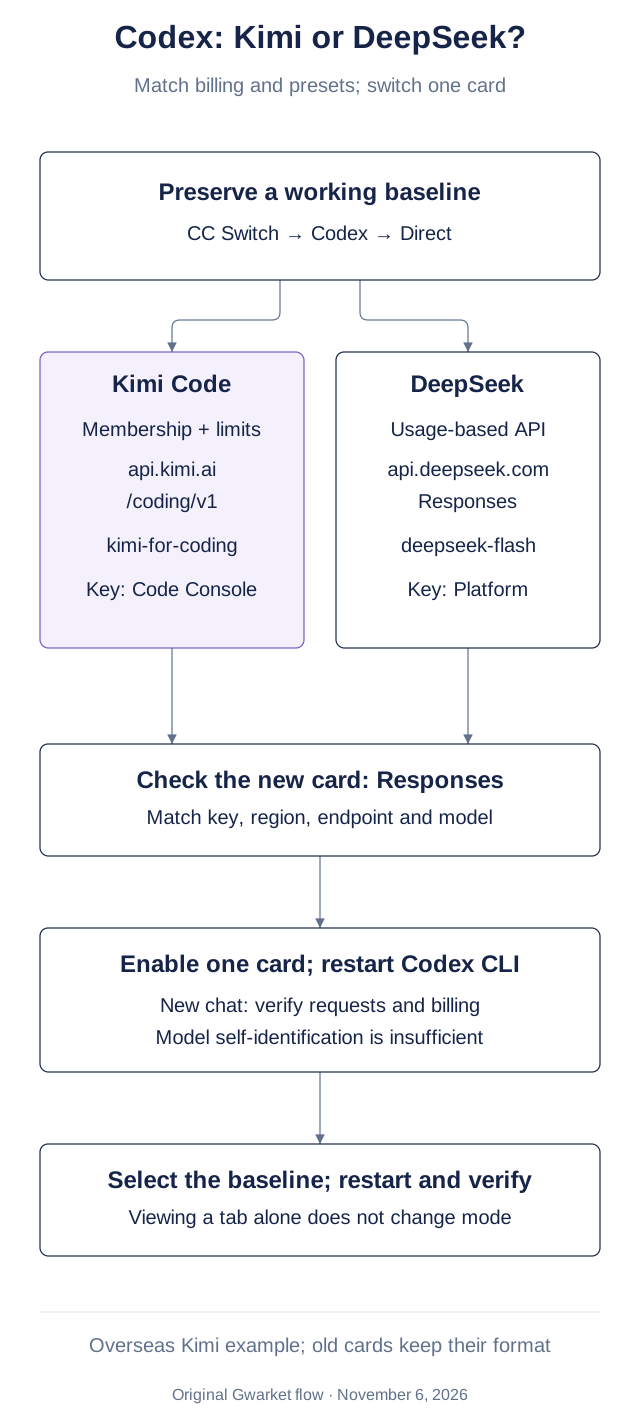
Original Gwarket routing diagram, November 6, 2026, based on pinned CC Switch presets and both vendors' guides. The Kimi endpoint shown is an overseas example. This is a documented workflow diagram, not a product screenshot.
Apply the existing steps to two provider cards
- Complete the backup and
defaultchecks above. Add a provider in the Codex panel's Direct area. - Select Kimi's Coding Plan and correct region, or DeepSeek. The current add form groups a vendor's plans and regions into one row; the first matching name alone is insufficient.
- Enter that platform's key. Recheck the table's endpoint and preset model. Changing a preset version refills the form and clears earlier input, so inspect it again before saving.
- If an older card has Needs Routing, retain it and add a separate card from the current preset. This section does not convert an unknown Chat-format card manually or add a proxy for these native presets.
- Save and enable one card, restart Codex CLI as documented, start a new conversation and perform the three checks below. Verify it before trying the other card; finish with the existing switch-back steps.
Sources: adding providers, switching and activation. This covers new Responses cards in Codex, without confusing their switching action with coexist mode in the native Kimi Code client.
Compare billing units before comparing prices
Judgment 1: membership quota and API token rates do not form a directly comparable cheapest-plan ranking. New Kimi plans include coding from Plus, with a shared monthly membership pool and rolling five-hour limit; legacy plans may retain weekly limits. Devices and keys share quota. Switching cards does not replenish it, and enabled Extra Usage can continue spending a separate balance. Check region-specific membership prices on the official plan page. (Membership rules)
DeepSeek bills by tokens. For deepseek-flash, current peak rates per million tokens are US$0.006 for cached input, US$0.30 for uncached input and US$1.20 for output; off-peak rates are half. Peak periods are weekdays 01:00–04:00 and 06:00–10:00 UTC, excluding Chinese public holidays. Other models have different prices. (Official pricing)
A calculation using one million uncached input tokens plus one million output tokens is US$1.50 peak or US$0.75 off-peak. At the Bank of Taiwan's November 5, 2026 USD spot-selling reference of 32.93, that is about NT$49.40 / NT$24.70, before exchange/payment costs or separately billed search. These are illustrative conversions, not vendor NTD prices. (Historical bank rates)
Judgment 2: verify the selected configuration separately from the billing destination. Existing Kimi subscribers should check coding eligibility and shared monthly balance first. Infrequent users considering token billing can estimate DeepSeek spending from cache misses and output volume. Neither a model's self-identification nor a lower unit price establishes matching task cost, tool behavior or output quality. Finish with the original verification and switch-back process below.
Verify the switch with three kinds of evidence
In a new test conversation, ask the model to turn “Confirm the event venue on Friday afternoon” into one task. This tests a basic request, not model quality.
| Check | Passing evidence | Insufficient evidence |
|---|---|---|
| Configuration took effect | The tool’s effective settings or available request records match the selected provider and model. | A button changing color in CC Switch. |
| The request completed | A normal response without authentication or unknown-model errors. | The interface simply showing no warning. |
| Expected billing destination | If the provider supplies usage records, match the request time. Leave this unconfirmed if records have not updated. | The model identifying itself in natural language. |
If one check remains uncertain, keep the configuration in testing. Do not use an important task to establish whether a new setup is reliable.
Test the original configuration after switching back
For a previous third-party provider, select the saved working configuration, restart the relevant tool and repeat the same small test. To return Codex to official login, first select the built-in OpenAI Official provider; add it from presets only if it was deleted. Check that card's Account to use: Follow Codex login uses the CLI's own login, while a selected ChatGPT account uses that account. Switch to the intended card, restart Codex CLI, and complete the official login flow if required. This does not restore an arbitrary third-party configuration. See the v4.0.25 FAQ.
If you enabled proxy takeover, also verify the request route. A familiar provider name does not establish that all routing has returned to its previous state. Revalidate any restored login information using the tool’s official process.
Switching back and restoring a backup are different
For a routine switch-back, select the saved working provider and repeat the same test. If CC Switch's saved data is damaged, use Settings → Data → Backup & Restore, select a known-good backup and choose Restore. Restoring replaces the current database; the documented flow creates a safety backup first. Preserve the current state and check the backup time before proceeding. This does not establish that a client login was restored.
If routing is active, return the relevant app to Direct with its mode-changing action before assuming that requests bypass CC Switch. Check the active mode and re-test the destination. Simply viewing the Direct tab is insufficient.
Start troubleshooting with the layer you changed
For authentication errors, check credentials and the service account. For an unknown model, check its ID. If basic replies work but a feature fails, check the provider’s support for that feature. These are diagnostic directions, not certain causes. Keep the exact error instead of repeatedly changing endpoints or permissions without evidence.
Your first setup is complete when you can explain which configuration is active, whether requests succeed and how to return to the previous state.
Related reading: Codex backup and restore.
Sources and verification limits
Sources and verification date: November 6, 2026. The Kimi/DeepSeek addition uses CC Switch v4.0.26 (f621d4216189ef06bcc6acd3588c84937b9794e1) and its pinned presets, Kimi Codex guidance, Kimi membership rules, DeepSeek Codex guidance and pricing. Existing general backup/switching instructions retain their v4.0.25 documentation basis. The diagram, cost calculation and two judgments are Gwarket editorial work; each vendor's version and plan conditions still apply.