On this page
To move Codex to another computer, inventory project folders, configuration ($CODEX_HOME/config.toml and project .codex/config.toml), and transcripts ($CODEX_HOME/sessions/ and archived_sessions/). CODEX_HOME defaults to ~/.codex, while project files stay in the work folders you selected. Sign in again on the new computer and protect credentials separately; transcript files alone do not establish that desktop history, tools and the execution environment are restored. State locations, transcript locations, credential storage.
Practice material: download the migration checklist, synthetic project, and restore verifier. It reads only the fixture inside the package, not your Codex home, real conversations, or credentials.
Separate four data roles
| Data | Purpose | Check on the new computer |
|---|---|---|
| Project files | Code, documents, media, uncommitted work | Files and revision are correct |
| Rules and settings | AGENTS.md, configuration, owned skill sources | Paths, dependencies, and permissions fit |
| Conversation and handoff | Decisions, unfinished work, verification | Readable and actionable |
| Credentials | Controlled account access | Sign in again; handle secrets separately |
Locate projects and configuration
Projects live in the work folders you opened, not necessarily inside application state. Codex uses CODEX_HOME for local state by default, but it may be overridden. Windows and WSL may have separate user environments. User config and project-level .codex/config.toml are distinct.
| Material | Typical location | Migration check |
|---|---|---|
| Projects | The work folders you opened | Sources, documents, uncommitted work and Git dependencies |
| User settings | $CODEX_HOME/config.toml, normally ~/.codex/config.toml | Also check profile files such as $CODEX_HOME/name.config.toml; review secrets and old paths |
| Project settings | Project .codex/config.toml and AGENTS.md | Separate defaults from trust and managed requirements |
| Transcripts | $CODEX_HOME/sessions/ and $CODEX_HOME/archived_sessions/ | Private work material; readable files are not a complete app restore specification |
| Sign-in and other state | auth.json or the OS credential store; SQLite may be located elsewhere | Protect credentials and unknown state separately from ordinary chat files |
Windows commonly uses %USERPROFILE%\.codex; macOS/Linux use ~/.codex. WSL has its own Linux user environment unless explicitly configured otherwise. CODEX_SQLITE_HOME can relocate SQLite state, and sqlite_home takes precedence. One copied folder may therefore be incomplete. See configuration layers and environment variables.
Create a non-secret inventory
Record project location, execution environment, revision, important output, and unsaved or uncommitted changes. Record configuration paths and purposes without pasting secret contents into a public document.
For skills and plugins, preserve sources and versions you own. Treat installed caches as rebuildable until the new environment reinstalls and verifies them; the presence of an old cache does not prove a plugin is usable.
Keep secrets outside public packages
Our first judgment: classify by data role before choosing the backup boundary. CODEX_HOME can contain configuration, transcripts, authentication and other state. It is not a shareable chat-only package. auth.json contains tokens, and credentials may instead use an OS store. We do not classify an unidentified state file or database as an ordinary transcript ready for cross-device import. Protect a private copy, establish its version and purpose, then plan controlled recovery. See state categories and credential storage.
Tokens, API keys, .env files, customer data, and private conversations require separate protection. OpenAI documents that sign-in state may use auth.json or the operating system credential store. Treat file-based credentials like passwords; this guide favors signing in again on the new computer.
Build a complete, dated backup
- Save work and stop writers before copying application state.
- Inspect Git branches, uncommitted files, ignored assets, and local-only branches.
- Separate rebuildable caches from irreplaceable source.
- Create a dated copy without overwriting the only old version.
- Save a file inventory, important SHA-256 hashes, and a readable handoff.
A Git worktree may contain a .git pointer to a common directory elsewhere. Moving only its work folder can leave an invalid old-machine path.
Restore to a new test location first
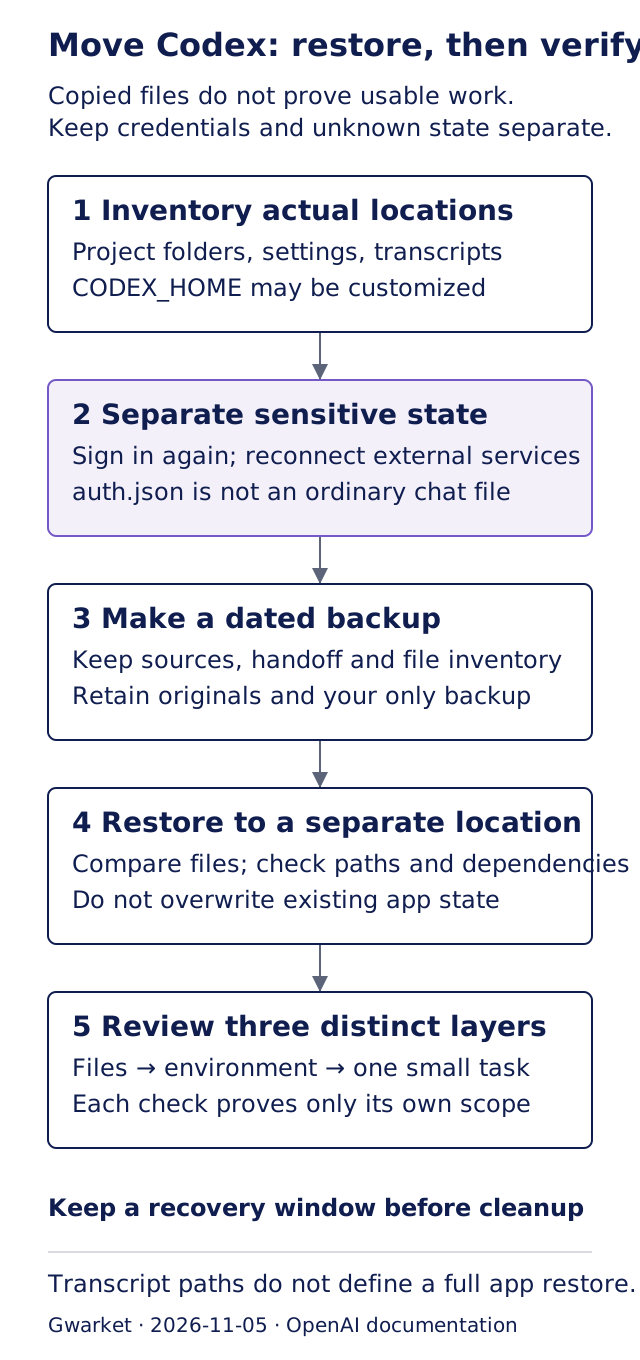
Install required applications and runtimes, place a project copy, compare files, adjust approved paths, sign in again, and run a disposable small task. File integrity and working capability are separate checks.
External services may require separate authorization even after Codex sign-in succeeds. Do not respond to a missing connection by broadening every permission. Managed workplace settings remain subject to organizational policy.
If your files are restored but a permission option or execution limit blocks you, follow the four-layer permission diagnostic checklist. Once the environment works, use your first Codex task to test a small piece of work. Success only confirms that tested task can continue; it does not establish that every previous workflow has been restored.
Do old conversations always return?
Whether a transcript reappears in the interface depends on client, account, version and storage behavior. OpenAI lists $CODEX_HOME/sessions/ and archived_sessions/ as transcript locations, not a universal full-desktop import contract between arbitrary computers. history.jsonl is not that contract either. Keep a readable handoff with verified decisions, revision and next steps so temporary history visibility does not erase the working plan. Transcript locations, history and state.
Current goal: finish the teaching document; do not change production.
Completed: first draft of draft.md.
Important sources: README.md, AGENTS.md, and the cited reference.
Current revision: [real branch or revision; write N/A if none].
Next step: verify the claims and wording in draft.md.
Do not change: do not expose credentials, deploy, or overwrite source material.
To confirm: the new environment and the selected working path.
Run the isolated restore exercise
The package contains five synthetic files. Its Node.js verifier creates a manifest, copies them into a backup, restores them into a new temporary directory, and compares hashes. It also changes one file in a separate tampered copy to prove that the comparison catches a difference.
node verify-restore.mjsThe synthetic exercise illustrates file copying, restoration and difference detection. The normal copy should match all five files; a separate copy with one changed draft should show a difference. This checks the teaching files, not sign-in, cross-platform compatibility or full desktop conversation recovery.
Define completion in three layers
Our second judgment: verify file identity and working capability separately. A hash comparison answers whether selected bytes match; sign-in checks current authentication; a small task checks one working path. None substitutes for the other checks. Stop relevant writers before preserving SQLite application state and keep original databases with their sidecar files. The official NFS recovery guidance likewise stops other clients and works from copies; its NFS-specific migration commands are not general computer-migration instructions here.
| Check | Proves | Does not prove |
|---|---|---|
| Hashes match | Checked file bytes match | Dependencies are installed |
| Application opens | The application starts | All conversations and settings are correct |
| Codex sign-in succeeds | The account authentication works | External tools and services are authorized |
| External tool reconnects | That one integration is authorized | Other integrations work |
| Small task succeeds | The tested path works | Every old workflow works |
Frequently asked questions
Is GitHub enough?
Not if uncommitted files, private assets, unpushed branches, or work context exist only locally.
Should I copy auth.json?
It may contain sensitive tokens and may not be your current storage method. Prefer a new sign-in and never place real credentials in a public package.
Can I use the same steps across Windows, macOS, and WSL?
Documents are portable, but paths, scripts, dependencies, permissions, and application state require separate verification.
Can I delete the old computer when I see the backup ZIP?
Not yet. Extract and verify the backup, then prove that a critical work path continues. Keep the old computer and backup for an appropriate recovery window before separately deciding on secure removal.
Next steps
- Diagnose unavailable permission modes: separate managed requirements from execution limits after restoring files.
- Choose a first Codex task: confirm a small, reviewable working path.
Sources and verification date
Sources and verification date: November 5, 2026. OpenAI documentation for basic configuration, configuration and state, environment variables, authentication, transcript locations, and NFS recovery boundaries. These living documents do not establish one complete desktop migration guarantee. Classification, diagrams, handoff and the synthetic exercise are Gwarket teaching methods.